 LalabbTools
How to Prepare Images for Print
Check your printer’s delivery rules, preserve originals, proof a representative image, and send only files you have reopened and verified.
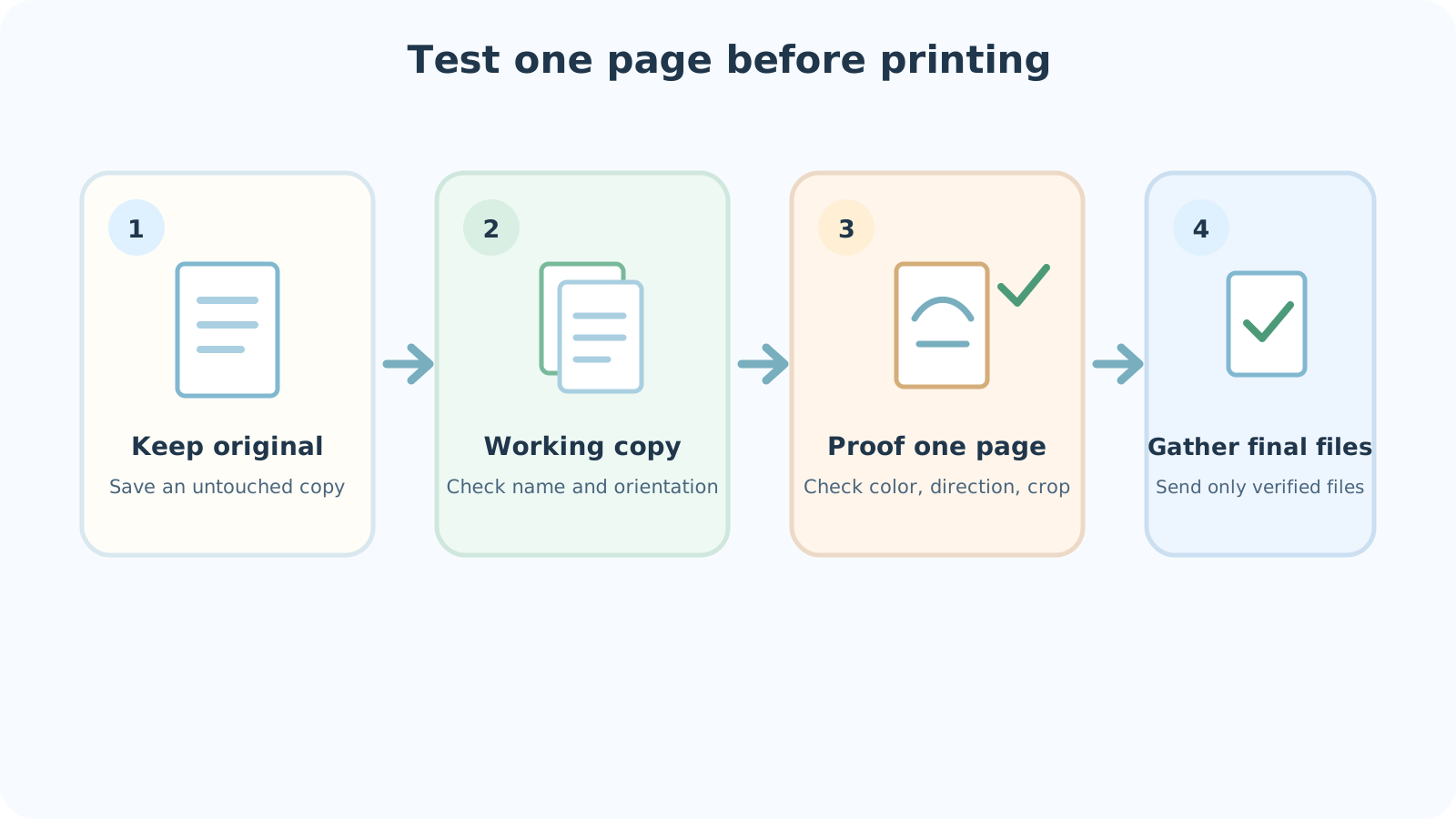
First confirm the printer’s accepted format, finished size, orientation, and delivery method. Keep your originals, work on copies, print a representative image at the intended size, and separate the final delivery files from test and older versions. Open the actual files you will send before handing them over.
Start with your printer’s instructions
A poster, a book page, and a card may call for different files and orientations even when they use the same image. Before editing, note the required format, finished size, page orientation, file names, and delivery method. If the instructions are unclear, ask the printer.
Printers do not all use one standard. An answer of “PDF is accepted” does not settle page size, order, or bleed.
This guide covers organizing and checking image files before handoff. Determine pixel and DPI calculations, book bleed, and gutter margins from their own guidance. Do not apply one printer’s rules to another.
For format choices, consult the JPG/PNG/WebP guide. For KDP page edges and the binding side, also see the bleed and gutter guides.
For a closer format comparison, see JPG, PNG, and WebP explained
For art reaching a KDP page edge, see Interior bleed
For space at the binding, see Inside margins and gutter
| Check | Specific question |
|---|---|
| Format and file count | Individual JPG or PNG files, one PDF, or several files? |
| Finished shape | Print size, orientation, and a supplied template? |
| Page edges | Any separate bleed or margin requirements? |
| Delivery method | Upload, email, or shared folder, and maximum file size? |
| Corrections | How should a replacement file be named and delivered? |
Separate originals, working copies, and delivery files
Do not overwrite an original. Edit a copy. After changing orientation, edges, or color, reopen the saved working file to check that the actual file contains the revision.
Renaming a file “final” does not update its contents. Open the file you intend to send, and keep it separate from proofs.
| File | Purpose | Safeguard |
|---|---|---|
| Original | First received art or editable source | Keep without overwriting |
| Working copy | Copy used for trial edits and comparison | Reopen after saving |
| Final delivery file | Actual file the printer receives | Open it and separate it from tests |
An example folder structure
Four folders under one project folder are an easy starting point. Rename them in a way your collaborators will recognize.
Preserve originals untouched. Edit copies in Working; put files intended for paper checks in Proofs. Keep only files you will actually send in Final Delivery, moving out old versions and trial PDFs.
- 01_Originals — untouched starting files
- 02_Working — copies for editing and comparison
- 03_Proofs — files to inspect on paper
- 04_Final-Delivery — files to send to the recipient
Make filenames and versions distinguishable
When `final.jpg`, `final2.jpg`, and `final_reallyfinal.jpg` coexist, the name alone is a poor guide. Names such as `book-page-01-v03.png` and `cover-front-v02.png` show purpose, page, and version. For date-driven work, `2026-09-28_page-01_v03.png` may help. These are examples, not a required naming scheme.
After increasing a version number, reopen the file to verify the change was actually saved. In a shared folder, agree who edited last and which file goes to the printer.
In a shared folder such as Google Drive or Dropbox, an old and new file may coexist, or an older copy may be uploaded again. If you replace a file, open the actual share link in another window and check that it points to the new version. No particular service is required.
Print one representative image on paper
Choose one image with important color or small text. If possible, print it at the intended size. Look for orientation, legibility, unexpected white borders, and cropping. If something is wrong, compare the original, working copy, and print settings before changing every file.
Check whether an important face or words sit too close to an edge, and whether thin lines look faint. Color can feel different on paper than on a bright screen. Ask the printer about its proofing method when color matters.
If you already know the print size and need to check pixels, use the tool below. The calculation does not judge paper color, legibility, or trimming.
For DPI at the size art occupies on a book page, see DPI for KDP interior images
To compare pixels with a chosen print size, use DPI / Print Checker
A home test print is not a printer’s proof
A sheet from a home or office printer can catch conspicuous mistakes. It does not guarantee the same paper, ink, or result as the final printer.
For a KDP book, a physical proof can help you inspect paper and ink before publication. For another printer, follow its own proofing process.
For a small coloring book, printing a page at actual size and coloring it can also help. Here the paper test focuses on errors in the delivery file rather than coloring comfort.
To check coloring comfort on small pages, see Mini coloring books
Before delivering several images
First confirm whether the printer wants individual images or a single PDF. Compare your delivery list with the actual files and open each to check orientation and content. Keep proofs and past versions outside the delivery folder.
If one PDF is required, Lalabb Images to PDF can place JPG or PNG images onto separate PDF pages. It does not set A4 or Letter paper size, margins, or bleed to your printer’s requirements. Recheck the exported PDF page count and order.
- Confirm the recipient’s format and delivery method.
- Compare file count and names in the final folder.
- Check orientation and content in every file.
- Separate proofs and old versions.
- Reopen final files and deliver them as requested.
Final delivery checklist
Checking boxes without opening files can miss an older version or a missing page. Do not stop after the PDF’s first page; scan the whole file for gaps and duplicates. Zoom into pages with different orientations or recent edits. Follow the printer’s own preview and proofing process too.
- Do format, file count, and delivery method match the printer’s instructions?
- Are all required files present without duplicate content?
- For multiple pages, are order and orientation correct with none missing?
- Are proofs and older versions absent from Final Delivery?
- Was the last edit saved in the actual delivery file?
- Did I open every file and inspect content and edges?
- If sending one PDF, did I check the first, middle, and last pages?
- For a share link, did I reopen it and check the new file and access permissions?
Keep in mind
Lalabb tools can organize files and make outputs but cannot guarantee color or the result on physical paper.
You must check the printer’s required format, size, and page conditions. A test print is one part of final review, not a replacement for the printer’s technical checks.
Common mistakes
- Overwriting the original with a working edit and losing the previous version.
- Trusting an on-screen preview without checking paper color and orientation.
- Renaming a file without opening it, then sending an old version.
- Skipping the final printer’s proofing because one home print looked good.
- Mixing proofs and final files in one folder, then sending the wrong one.
If something has already gone wrong
I sent an old version or proof.
Open the sent file and final working copy to identify the difference. Immediately ask the recipient whether replacement is still possible, then send the correct file. If you spot an edit after delivery, check production status first. Do not merely rename the same old file.
I made an edit, but the delivery file shows old content.
Check where the editing app saved its file, then reopen the file in the delivery folder. If you edited another copy, export a fresh final file from the correct working copy.
The proof has the wrong orientation or edges.
Check the exact file that was printed and the print settings. Open the original and working copy to find where they diverged, then retest with the corrected file. Consult the printer’s trim and margin rules if relevant.
The printer rejects the file.
Ask for the rejection reason and accepted format. Do not just rename an extension; create a real file in the required format. Combining images with Images to PDF does not by itself guarantee print approval or compliance.
A page is missing or the PDF order is wrong.
Compare the source-image list side by side with the sent PDF and locate the missing or displaced page. Correct the input order, create a new file, and inspect it from first page to last. If already sent, tell the printer and ask whether replacement is possible.
Frequently asked questions
Must I make a PDF if my printer accepts JPG or PNG?
No. Deliver the format the printer requests. Combine images only if a single PDF is needed.
Can I send a file just because its name contains “final”?
A name does not verify the contents. Open the last saved file and inspect orientation and content.
How can I check for a missing image among several?
Compare the delivery list with the actual final-folder files. If you made a PDF, inspect it from first to last page too.
Will the final print match one test sheet from my home printer?
Not necessarily. The sheet may reveal orientation, cropping, or legibility problems, but it cannot guarantee the final printer’s paper and ink result.
What if a collaborator edited the shared file?
Check who edited last, agree on the delivery version, and reopen that file immediately before sending it.
Does Images to PDF set print margins and bleed?
No. It combines JPG and PNG images into PDF pages. Prepare paper size, margins, and bleed separately for the printer’s requirements.
How can I get the old version after editing an original?
Preserving the original and editing a copy is safest. If you already overwrote it, look for a separately saved earlier copy.
Should I send multiple images as a ZIP or one PDF?
Follow the recipient’s requirements. For images or ZIP, verify filenames and count; for one PDF, combine in order and inspect every page. Ask the printer if the format is unspecified.
Can paper colors differ even if the screen looks right?
Yes. A monitor and home printer cannot determine the final printer’s paper and ink result. Ask about proofing if color matters, and inspect a proof close to the intended production conditions if needed.
I realized the sent file is wrong. What should I do first?
Identify what was sent and which working copy is correct. Contact the printer promptly about production status and replacement, then send the new file. If using a share link, check that it opens the revised file.
Continue in Lalabb
Combine JPG or PNG only when the recipient requires one PDF. This does not automatically meet print specifications or guarantee approval.