 LalabbTools
How Much Gutter Does a KDP Book Need by Page Count?
Use the final interior page count to find KDP’s minimum inside margin, then inspect both sides of a spread.
A KDP book generally needs a wider inside margin, or gutter, as its final page count grows. Count all pages in the finished interior PDF, including blanks, find the corresponding KDP minimum, and place important text and art comfortably away from the binding edge.
Where is the inside margin?
In an open book, the space left near the center binding is the inside margin, also called the gutter. The outside margin is at the opposite page edge. They occupy different places and follow different minimum rules.
To decide whether you need bleed and what PDF size to use, read KDP interior bleed
| Margin | Where it is | Check this |
|---|---|---|
| Inside margin (gutter) | Center of an open book, next to binding | Minimum for the final page count |
| Outside margin | Edge opposite the binding | Minimum for your bleed choice |
Minimum gutter by final page count
These are KDP’s minimum margins for book interiors. As page count increases, the book gets thicker and needs more space near the binding.
KDP: Set Trim Size, Bleed, and Margins
| Final pages | Minimum inside (gutter) | Outside: no bleed | Outside: bleed |
|---|---|---|---|
| 24–150 | 0.375 in (9.6 mm) | At least 0.25 in (6.4 mm) | At least 0.375 in (9.6 mm) |
| 151–300 | 0.5 in (12.7 mm) | At least 0.25 in (6.4 mm) | At least 0.375 in (9.6 mm) |
| 301–500 | 0.625 in (15.9 mm) | At least 0.25 in (6.4 mm) | At least 0.375 in (9.6 mm) |
| 501–700 | 0.75 in (19.1 mm) | At least 0.25 in (6.4 mm) | At least 0.375 in (9.6 mm) |
| 701–828 | 0.875 in (22.3 mm) | At least 0.25 in (6.4 mm) | At least 0.375 in (9.6 mm) |
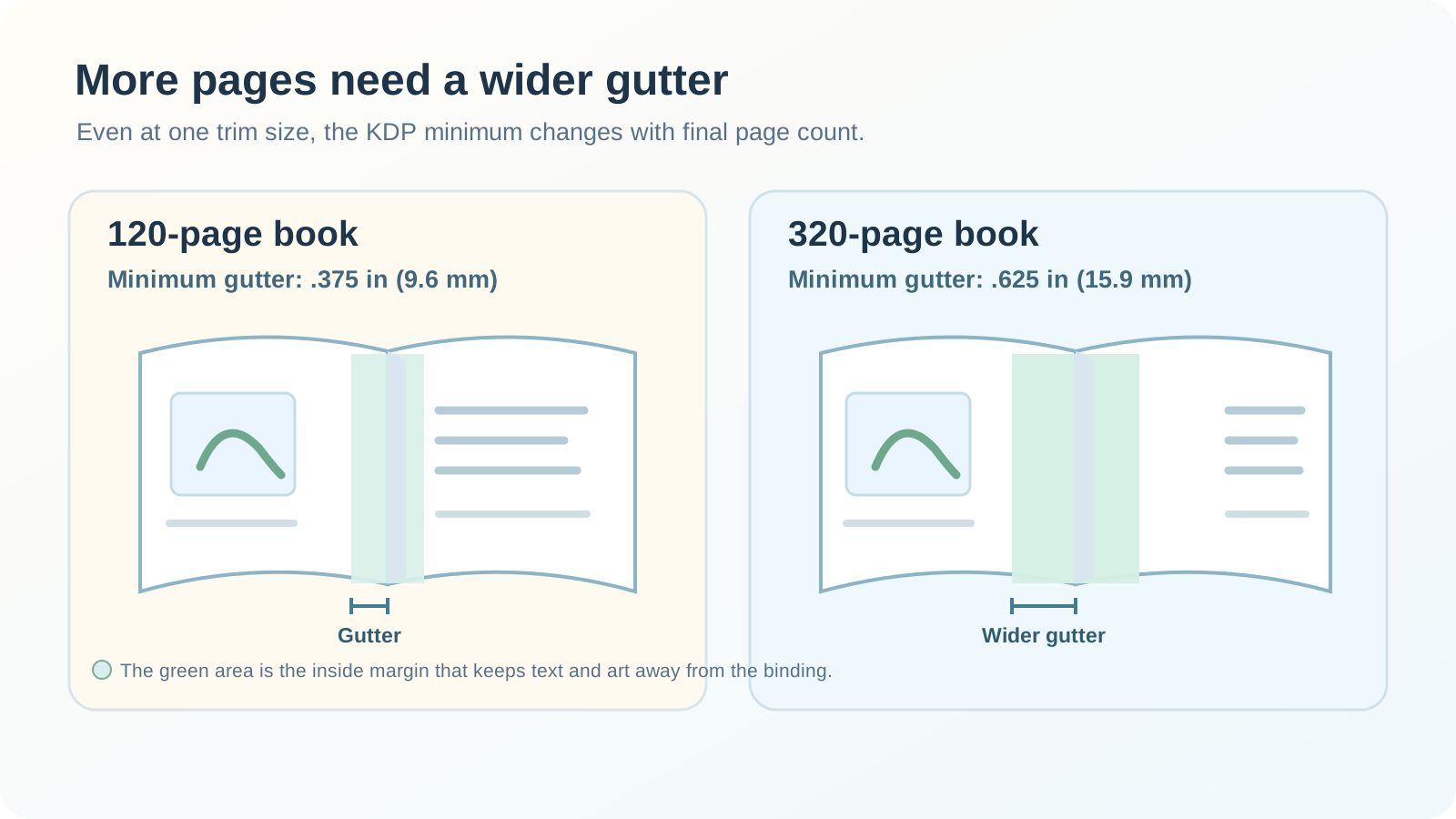
For example, a 120-page book needs an inside margin of at least 0.375 inch; a 320-page book needs at least 0.625 inch. The gutter can change even when trim size does not.
This is a margin table, not a promise that every combination of trim size, paper, and ink supports 828 pages. Check the supported page count for your chosen print options. Give important content more room than the bare minimum.
Official KDP margin guidance checked September 29, 2026.
Compare two page counts visually
Put sample spreads from a 120-page and a 320-page book side by side. A thicker book needs more room at the center so text and artwork do not disappear into the binding.

Check both sides of the spread separately
The binding is on opposite sides of left and right pages. If you place the same image identically on both, one page may have plenty of outside margin while text or a face on the other sits close to the center.
The table gives minimums. A thick book may not open flat, so move critical content farther from the binding if necessary and test a representative spread at actual size.
| Page | Binding side to inspect | Outside edge to inspect |
|---|---|---|
| Left page | Text and art near the right edge | Important content near the left edge |
| Right page | Text and art near the left edge | Important content near the right edge |
Prepare the interior step by step
- Choose trim size and print options, and confirm the supported page-count range.
- Count pages in the final interior PDF, including blanks.
- Use the table to find the inside-margin minimum for that final count.
- In the source pages, keep text and essential art away from the binding. Inspect both left and right pages.
- Export the PDF and check margin warnings and actual placement in KDP Print Previewer. Fix the source and upload a new PDF if needed.
Checklist after page count is final
A change in page count can move the book into another gutter band. Recalculate from the finished interior PDF before preparing the cover.
To reconcile your final interior and cover, read Final checks before publishing
- Did I count every page in the final interior PDF, including blank pages?
- Does the chosen trim, paper, and ink combination support that count?
- Did I recheck the gutter band for the final count?
- Did I inspect the binding edge on both left and right pages?
- Are headings, text, faces, and other key elements comfortably beyond the minimum line?
- Did I separately check the outside margin required for my bleed choice?
- Did I review warning pages and spreads in KDP Print Previewer?
Common gutter mistakes
- Counting pages but excluding blanks: use every page in the exported interior PDF.
- Checking the same outside edge on left and right pages: the binding sides meet at the center of a spread.
- Putting text right on the minimum line: even when technically compliant, it can be hard to read; leave extra space.
- Keeping the previous gutter after increasing the page count: recheck the source layout and PDF if the new count crosses a band.
Troubleshooting
Text or art disappears into the center of the open book.
Check that the gutter matches the final page count. Even if it meets the minimum, move essential content farther from the binding in the source if the spread is uncomfortable to read.
KDP says my margins are too small.
Find the specific page and edge flagged in Print Previewer. Check the final page-count band and inside and outside margins separately, correct the source, and upload a new PDF.
Only the left pages look too close to the binding.
On a left page, the binding is on the right. Check the inside edge of each side separately. Move important content on left pages away from the center and remake the PDF.
Margin warnings appeared after I added pages.
The final count may have crossed into the next gutter band. Count the new PDF including blanks, apply the corresponding minimum, and recheck warning pages after upload.
After I widen the gutter, outside artwork looks cropped.
You may have confused inside and outside margins or shifted the image. Check both separately in the source, reposition the artwork, and compare the new PDF with Print Previewer.
What to check in Lalabb and in KDP
Book Studio can show final page count and create an interior PDF. Its current screen does not let you directly adjust the inside margin or automatically move source text and artwork away from the binding. Leave that space while designing source pages, then inspect the PDF in KDP Print Previewer. Lalabb cannot guarantee KDP approval or the physical print result.
Frequently asked questions
Do blank pages count when choosing the gutter band?
Yes. Use the page count of the final interior PDF, including blank pages.
What if my page count crosses into the next band during editing?
Use the final count to find the new minimum. Check that important text and artwork in the source pages are still inside it.
Must the outside and inside margins be the same size?
No. KDP’s inside minimum depends on the final page-count band; its outside minimum depends on whether the interior has bleed.
Will Book Studio automatically fix an insufficient gutter?
No. Its current screen does not automatically move text or artwork in your source pages away from the binding. Correct the source and inspect a new PDF.
Is a book guaranteed readable if it meets the minimum gutter?
No. The minimum is a starting point. Leave extra room for key content and inspect open spreads in the exported PDF and KDP Print Previewer.
Is gutter determined only by page count, not trim size?
This KDP inside-margin table uses final page count to find a minimum band. But supported page counts also depend on trim, paper, and ink, so check those print options first.
Is the inside edge on the same side of left and right pages?
No. On an open spread, the right edge of a left page and the left edge of a right page face the center binding. Inspect both.
Do picture books and coloring books need a gutter check?
Yes. Even without much text, key parts of pictures or coloring areas can disappear into the binding. Inspect a representative spread at actual size and adjust source art if needed.
If page count drops into a lower band, must I narrow the margin?
No. You can keep a margin wider than the new minimum. Still inspect the balance and readability of the final PDF.
Can I combine gutter and bleed into one margin measurement?
No. Gutter protects important content at the binding; bleed extends backgrounds beyond the outside trim line. They have different positions and purposes, so check them separately.
Try it now
Book-making flow
- Create content
- Prepare files
- Gather pages
- Book Studio
- Cover Studio
- Final check
Use Book Studio to confirm final page count and create the interior PDF.
Inspect the binding-side layout in KDP Print Previewer.