 LalabbTools
How to Prepare a Mini Coloring Book
Test your busiest drawing at actual mini-book size, then open up only the coloring areas that feel cramped.
Choose the book size first and print the most detailed drawing at that actual size. Try its smallest spaces with the coloring tools readers will use. Widen or simplify the uncomfortable areas, then test again rather than reducing every drawing by the same amount.
What changes on a smaller page?
A mini coloring book is smaller than a typical large coloring book; there is no single standard mini size. On a smaller page, the spaces between petals or repeating decorations in the same drawing can become too narrow to color.
The example shows crowded decoration on the left and roomier coloring space after removing some details on the right. It does not mean every drawing must be simplified.
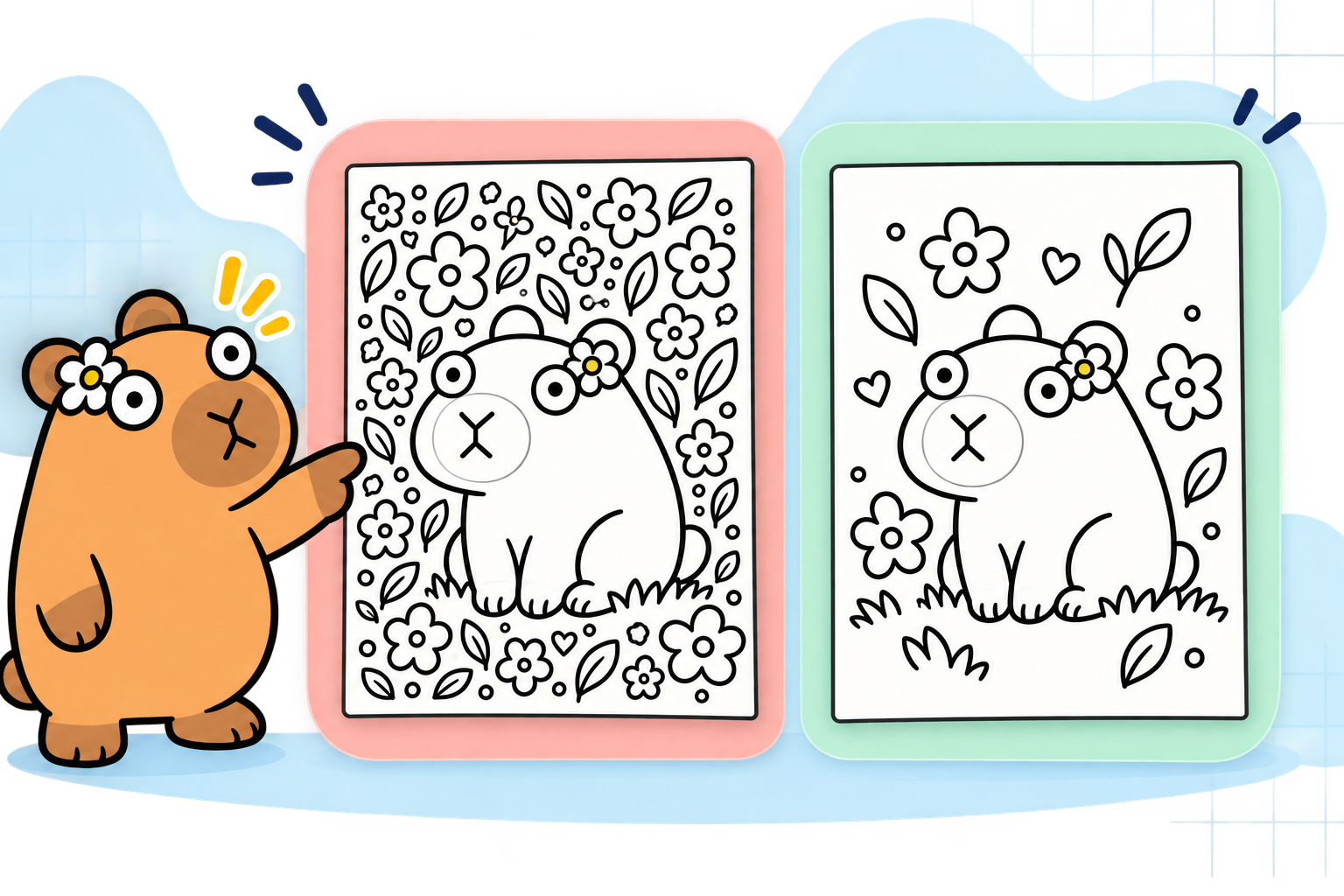
What to inspect on a small page
| Look at | Possible problem at small size | Try first |
|---|---|---|
| Small petals and repeated details | Individual spaces are hard to fill | Remove a few of the tiniest decorations |
| Closely spaced lines | Boundaries between spaces become unclear | Increase space between lines |
| Captions close to artwork | Text and art feel crowded | Shorten or reposition the caption |
Compare the reader and coloring tools
Age alone does not determine whether a drawing is suitable. Experience and the actual coloring tool are more direct clues. Try the same page with a fine colored pencil and a thick crayon to see whether the spaces and line spacing are sufficient.
| Use case | Check | Possible adjustment |
|---|---|---|
| Thick crayon or marker | Can it fill a small space without crossing the line? | Widen spaces or remove details |
| Page with text and a QR code | Can you read and scan them at print size? | Print and test the text and QR at actual size |
| Fine line art | Do lines remain intact and spaces distinguishable? | Adjust source lines and spacing, then reprint |
Test just the most complex drawing first
- Choose the book size and the most crowded drawing.
- Place it on the planned page and print a test. Turn off automatic “Fit to page” scaling and confirm actual size or 100%.
- Color a small area using the pencil, crayon, or marker readers will really use.
- Widen or remove only the details that repeatedly cause trouble. Retest the revised image at the same size.
- Once that page feels comfortable, use its standard to review the remaining pages.
Test with the coloring tool readers will use
Different tools need different amounts of space. If you expect thick tools, test with those rather than only a fine pencil.
A home proof can reveal size and coloring comfort, but it cannot guarantee the exact paper and print result of the final printer.
Checklist before expanding to every page
Even after the sample succeeds, look for exceptions across the full book.
To arrange the drawings as pages, read How to make a coloring book PDF
- Does the printer offer this small trim size with your chosen print options?
- Did I print the busiest drawing at actual size or 100%?
- Did I color its smallest spaces with the intended reader’s tool?
- Did I mark lines that broke up or merged?
- If there is text or a QR code, did I read or scan it on paper?
- Did I reprint the revised drawing at the same size?
- Did I check page order and margins in the final PDF?
Common mistakes with mini books
- Only shrinking artwork made for a large book: tiny spaces and crowded lines remain.
- Judging only from a zoomed screen: print at actual size to understand the coloring space.
- Testing only the simplest picture: the busiest page may be the uncomfortable one.
- Using just one fine pencil: a reader with a thicker tool may have a different experience.
- Forgetting the final page count after adding blanks or front matter: compare it with the printer’s options.
Troubleshooting
The test print is smaller than I expected.
Check whether “Fit to page” or automatic scaling is enabled in the print dialog. Print again at actual size or 100%, then measure the paper result against the intended page size.
I keep coloring outside the tiniest areas.
Use the real coloring tool and mark the spaces that are uncomfortable. Remove nearby repeated decorations or separate close lines in those places, then test again.
Some printed lines break up or look faint.
Inspect source line weight and image resolution. Mark the problem areas on an actual-size print, strengthen those lines in the source, and compare another proof.
Instructions are hard to read in the small book.
Check text size, length, and distance from the artwork in the source. Read it on an actual-size print, enlarge or split the text, and retest.
Artwork is cropped at the edge of the final PDF.
Compare the source image’s proportions with the book page and Book Studio placement. Move essential lines inward or remake the source page for that size, then export a new PDF.
What Lalabb can do
After revising and testing your artwork, select a book size in Book Studio and gather JPG or PNG pages into an interior PDF. Book Studio does not automatically widen small coloring spaces or judge how comfortable a page is to color.
You can separately use DPI Checker to compare pixels with intended print size, but its result cannot replace a real coloring test.
If you plan to publish through KDP
Check whether KDP supports your trim size with the chosen paper and ink. KDP recommends reviewing a proof before publication. Lalabb cannot guarantee the physical print result or KDP approval. KDP options checked September 29, 2026.
Frequently asked questions
Is there one standard mini coloring book size?
No. Choose a trim size your printer offers, then test whether the artwork is comfortable to color at that exact size.
Must I print every drawing before shrinking the pages?
Start with the most complex representative drawing. Use that result to review the others, and test additional pages that still look cramped.
What should I check first if the test print is too small?
Look for automatic reduction or “Fit to page” in the print dialog. Print at actual size or 100% and compare it with the planned trim size.
Will Book Studio automatically enlarge small coloring spaces?
No. Change the small spaces and line spacing in the source art. Use Book Studio to assemble the prepared pages at the selected book size.
If a fine colored pencil works, will a thick marker work too?
Not necessarily. Fill the smallest spaces with the tool readers will actually use and adjust lines or details if needed.
Is a smaller book always better for young readers?
No. It may be easier to carry, but tight spaces can be harder to color. Choose a likely reader and tool and test the busiest drawing.
Will thin lines look the same after shrinking the drawing?
Not always. Nearby lines can merge and fine lines can fade. Adjust the original and print again at actual size.
If a QR code scans on screen, is that enough for a small page?
No. Screen and paper differ. Print the QR at its intended size and scan it with more than one phone.
Can I choose any page count for a mini book?
The available count depends on your printer and combination of trim size, paper, and ink. Include blank backs and front matter when checking the finished interior page count.
Can I skip checking the rest if my sample page looks good?
The sample is only a start. Test any page with denser lines or more text, and inspect order and placement across the finished PDF.
Try it now

Book-making flow
- Create content
- Prepare files
- Gather pages
- Book Studio
- Cover Studio
- Final check
Test and adjust the artwork during file preparation.
When the art is ready, gather pages in Book Studio and make the interior PDF.