 LalabbTools
What DPI Should Images Be for a KDP Book?
Calculate effective image resolution from the size an image will occupy on a printed page—not the size of the whole book.
KDP calls for images to be at least 300 DPI at their actual printed size. A 6 × 9-inch book does not make every image 6 × 9 inches: measure the space each image occupies on its page. Check both pixel dimensions against that space.
Who this guide is for
For anyone preparing artwork for a KDP book or deciding how large an existing image can appear on a printed page.
The same image at three placement sizes
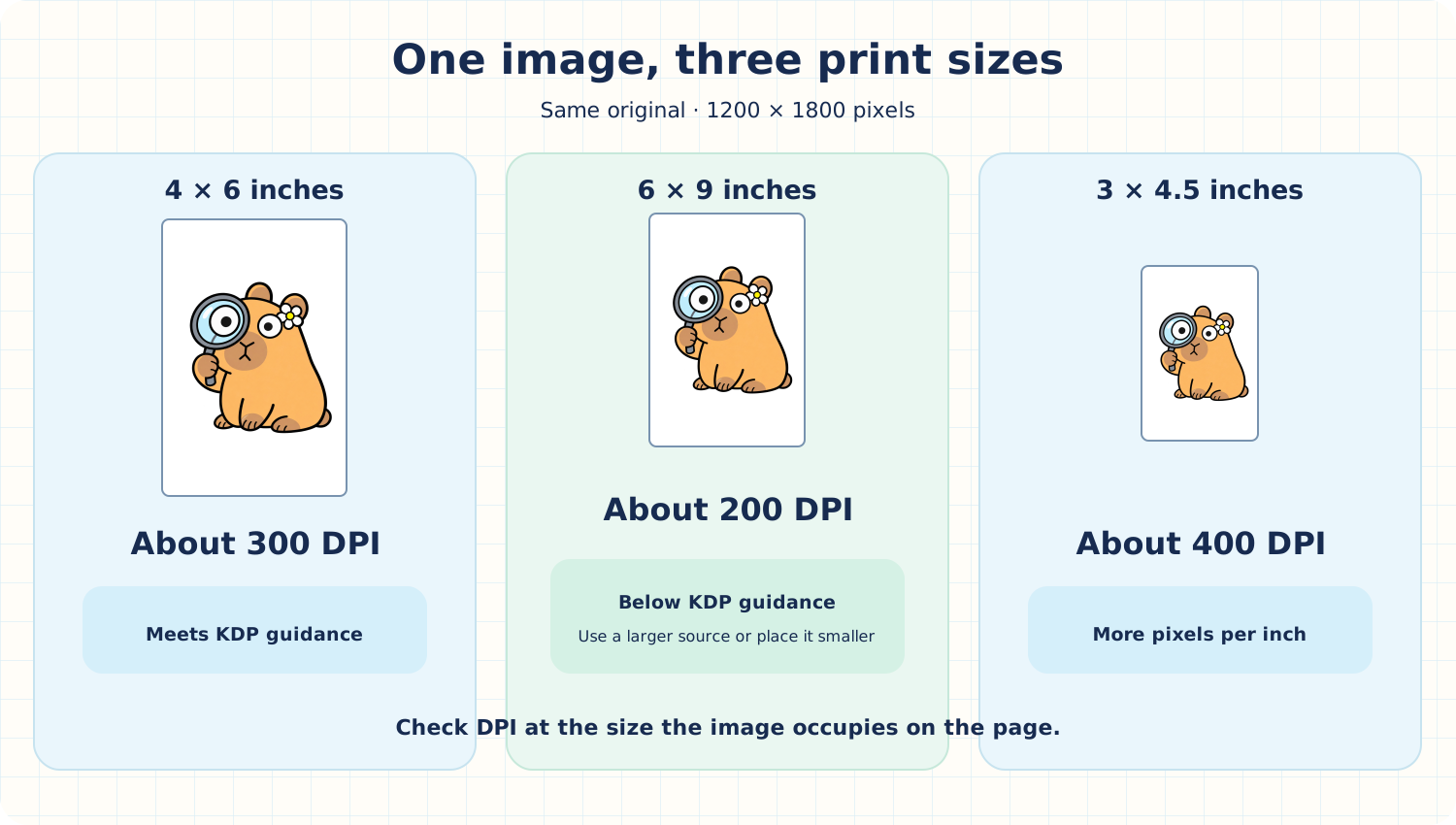
The static comparison below uses one approved 1200 × 1800-pixel capybara illustration. Only the space it occupies in the book changes; the original image file does not.
At 4 × 6 inches, it has about 300 DPI and meets the KDP guidance. Enlarge the same image to 6 × 9 inches and it drops to about 200 DPI. Place it at 3 × 4.5 inches and it reaches about 400 DPI.
For example, an illustration placed at 4 × 6 inches inside a 6 × 9-inch book should be checked at 4 × 6 inches. To fill the whole page, start with a larger original.
Decide how large the image will appear first
Before placing an image, decide its actual width and height on the printed page. Compare the pixel count in each direction with that dimension. Lalabb’s DPI Checker can help you enter the source pixels and intended placement size.
If the effective resolution is below 300 DPI, place the image smaller or find a source with more pixels. Keep its original aspect ratio; stretching width and height independently can distort it.
Calculate the effective DPI of one source image
All three rows use the same 1200 × 1800-pixel original with its proportions preserved. Divide horizontal pixels by placed width and vertical pixels by placed height.
| Placement size | Width calculation | Height calculation | Result |
|---|---|---|---|
| 3 × 4.5 in | 1200 ÷ 3 = 400 | 1800 ÷ 4.5 = 400 | About 400 DPI |
| 4 × 6 in | 1200 ÷ 4 = 300 | 1800 ÷ 6 = 300 | About 300 DPI |
| 6 × 9 in | 1200 ÷ 6 = 200 | 1800 ÷ 9 = 200 | About 200 DPI |
Also check fine lines and page bleed
Fine lines in tables or illustrations can disappear in print even when they look acceptable on screen. KDP specifies a minimum printed line weight of 0.75 pt (about 0.3 mm). A point, abbreviated pt, is a unit used for type and line weight.
If art or a background must print to the very edge, check bleed separately. Bleed extends artwork beyond the trim line so that trimming does not leave a white strip. For example, KDP specifies a 6.125 × 9.25-inch interior PDF page for a 6 × 9-inch book with bleed. That number describes the entire PDF page, not the DPI of an individual image.
Check KDP file requirements too
KDP limits the uploaded file to 650 MB. That is KDP’s limit, not a Lalabb tool limit.
KDP does not set a fixed maximum image DPI, but recommends no more than about 600 DPI to keep files manageable. Increasing a number cannot create detail absent from the original.
A practical sequence
- Choose the book’s trim size and the space each image will occupy.
- Check each source image’s pixel dimensions and compare them with that placement in DPI Checker.
- For an image that falls short, find a larger original or place it smaller.
- After creating the interior PDF, inspect placement, cropping, text, and lines in KDP Print Previewer.
Checklist before placing images in the book
Keep the page size and the image’s actual placement size separate.
If art reaches the page edge, read How to prepare KDP interior bleed
- Did I record both the finished book trim size and the placed width and height of each image?
- Did I check the original image’s width and height in pixels?
- Did I calculate effective DPI in both directions?
- Did I preserve the image’s proportions and check for empty space or cropping?
- Did I test fine lines and small text at actual print size?
- If art reaches the edge, did I check bleed separately?
- Did I inspect the completed interior PDF in KDP Print Previewer?
Common mistakes
- Using the whole book size for every image: if an image fills only part of the page, use its actual placed size.
- Stretching an image without respecting its aspect ratio: adjust placement and surrounding space instead of distorting it.
- Making an edge-to-edge page without bleed: check the interior PDF page size and the artwork beyond the trim line.
Troubleshooting
There is a white strip at the page edge in KDP Print Previewer.
First decide whether the artwork must reach the edge. If it must, check that you selected bleed in KDP and that the interior PDF page and extended artwork have the required dimensions.
Thin lines disappear or break up in a proof.
Check the line weight in the source artwork. Make one representative page with clearer lines and test it again at actual size.
Fonts change or characters disappear in the PDF.
The fonts may not be embedded. Export a PDF with embedded fonts, then check it again in KDP Print Previewer.
The DPI number is high enough, but the image still looks blurry.
The source may already be soft or may have lost detail during earlier enlargement or compression. Inspect it at the intended placement size. Find a sharper source or place it smaller, then test a representative page.
The image looks stretched after I place it.
Check whether you enlarged width and height separately. Keep the original aspect ratio, adjust the image size or surrounding margins, and inspect people and round shapes in the new PDF.
What Lalabb can help with—and what you must check
DPI Checker helps compare an image’s pixel dimensions with its intended print size. You still need to decide its actual page placement, verify bleed and margins, and check the final PDF against KDP requirements. Lalabb cannot guarantee KDP review or publication approval.
How this guide connects to Lalabb tools
Choose the image’s placed size, then use DPI Checker to evaluate its effective resolution. Arrange prepared art into interior pages in Book Studio. Finally, inspect placement and cropping in KDP Print Previewer.
Frequently asked questions
Does rotating an image 90 degrees change its pixel count?
No. The pixel count stays the same; width and height switch directions. Recheck it against the width and height it will occupy after rotation.
Does a KDP preview with no warning guarantee the printed result?
No. Print Previewer helps catch placement, cropping, and basic file issues, but it cannot fully show how color or very fine lines will look on paper. For an important book, review a printed proof copy when possible.
Will color artwork print in color if I choose black ink?
No. With black-and-white printing, color art prints in black and white. Recheck the ink option if color matters.
Can I trust the 300 DPI number in file properties alone?
No. Compare the width and height in pixels with the size in inches at which the image will actually appear. Changing only a metadata number cannot add detail.
If the image takes up half a page, should I use the whole book size?
No. Use the image’s own placed width and height. An image placed at 4 × 6 inches in a 6 × 9-inch book is evaluated at 4 × 6 inches.
What if horizontal and vertical DPI differ?
Check both. A shortage of pixels in either direction can make the image look soft or stretched. Adjust the placement while preserving the original proportions.
Will enlarging a 300 DPI source to 600 DPI make it sharper?
Merely increasing the output setting or pixel count cannot invent detail absent from the source. Check its real sharpness and placement size before creating an unnecessarily large file.
Do thin-line illustrations need a different check from photos?
Check both pixel dimensions and whether the lines survive at printed size. KDP gives line-weight guidance, so print a representative page and look for broken or missing lines.
Are bleed page dimensions and image DPI the same calculation?
No. Bleed changes the full interior PDF page dimensions around the trim. DPI describes the pixels of an image at the size where you place it. Check them separately for edge-to-edge art.
Can I use these KDP numbers unchanged at another printer?
No. The KDP measurements and upload limit here describe KDP. Check the other printer’s current image-resolution, format, and page-size rules, and test the result.
Try it now

Book-making flow
- Create content
- Prepare files
- Gather pages
- Book Studio
- Cover Studio
- Final check
2. Prepare files — current step
Once image size and placement are set, gather the pages.