LalabbTools
JPG vs PNG vs WebP: Which Image Format Should You Use?
Choose a format based on where the file will go, whether it needs transparency, and how its detail and file size compare.
For photos sent to common apps or documents, compare JPG first. For transparency or crisp text and line art, compare PNG. For websites, also test WebP—but confirm the destination accepts it and open the exported file yourself.
Who this guide is for
Sharing a photo, using art with a transparent background, or uploading an image to a website? Start with the destination and the image content, not just the format name.
Where will you use the image?
First check which formats the destination accepts and whether you need a transparent background. Use the table to choose a format worth testing for your use case.
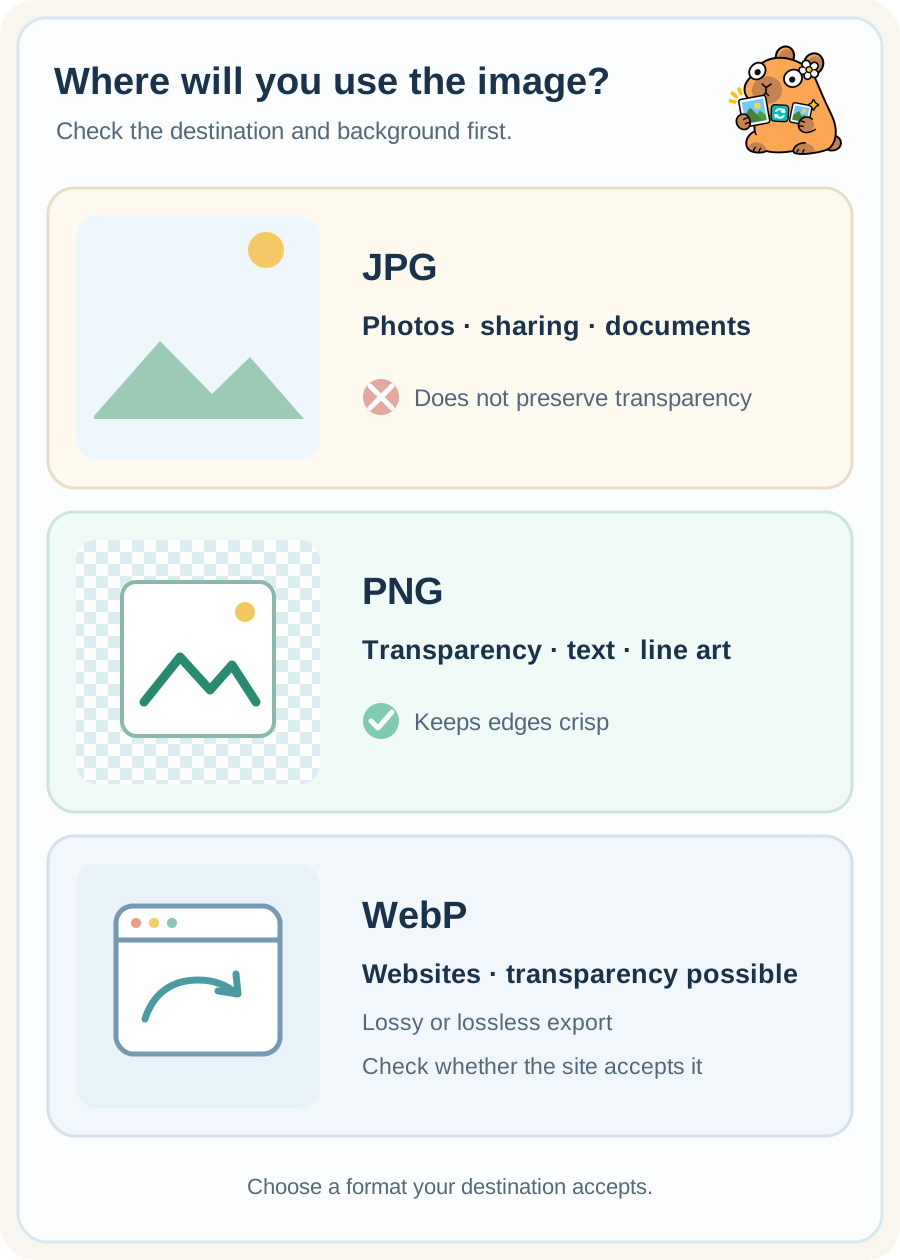
| Destination and image | Try first | Check the result |
|---|---|---|
| Sharing a photo by email or in a common app | JPG | Does it open there, and do details still look acceptable? |
| Transparent logo, screenshot, text, or line art | PNG | Do the background and edges appear as intended? |
| Image for a website or online store | WebP | Does the site accept it, and are file size and displayed quality suitable? |
Which file should you make?
For example, you might email a JPG copy of a product photo but prepare a PNG copy of a product graphic that needs an empty background. For the same photo on a website, make a WebP copy too and compare it with the JPG. WebP is not always the smallest or best result; the source and export settings matter.
How do file size and visual quality differ?
JPG is often used to make photos smaller. It discards some image information on export, so a very low quality setting can smear details and edges. PNG keeps image information without that loss and is useful for transparent backgrounds, text, and lines, but a photo can become a large file. WebP can represent photos or transparency and offers different compression modes; actual sizes vary with the settings.
Lossy compression discards some information to reduce file size; lossless compression preserves it. Keep your original and make a delivery copy so you can export again in another format or at another quality setting.
A practical way to choose
Lalabb currently starts at 82% quality. That is a starting point for comparison, not the ideal setting for every image.
- Check the formats accepted by the place where you will upload or send the image.
- Decide whether you need transparency and whether the image is a photo or contains important text and lines.
- Keep the original and make a copy in the needed format using a Lalabb converter.
- Open the new file at its destination and inspect the background, text, photo detail, and file size.
Checklist before converting
Choose for both the destination and the content. Open the converted file and verify it afterward.
For images going to print, read How to prepare images for print
- Does the destination accept JPG, PNG, or WebP?
- Is a transparent background essential?
- Is this a photo, or are text, lines, and diagrams important?
- Did I save the original separately?
- Did I compare the result at the size where it will be used?
- Did I check both file size and upload limits?
Common mistakes
- Expecting a format change to improve the source: conversion cannot add missing image detail.
- Choosing by file size alone: a small file is not useful if text is soft or photos are visibly damaged.
- Deleting the original without opening the result: the destination may reject it or display it differently. Keep the source.
Troubleshooting
The site rejects my WebP file.
Check the site’s accepted formats. If it accepts JPG or PNG, export a new copy from the saved original and try that. Renaming the filename extension is not conversion.
The exported photo looks smeared.
Open the source and result at the same display size. If the source is clear, make another copy at a higher quality setting and check it at the destination.
The converted file is larger than expected.
If the destination allows it, compare JPG and WebP outputs. Also check whether the pixel dimensions are much larger than the display size you need.
A transparent background turned white.
JPG cannot preserve transparency. If transparency matters, export PNG or a WebP version that supports it from the original, then inspect it against a checkerboard or contrasting background.
Text edges look soft in my PNG.
Check whether the source was already small or had been reduced before conversion. Make a new copy at sufficient pixel dimensions from the original, then compare text and lines at use size.
How Lalabb tools fit together
After checking the destination’s accepted formats, use Lalabb’s WebP Converter to compare JPG, PNG, and WebP copies. If the result is too large, try Image Compressor; if the display dimensions need to change, use Image Resizer. Lalabb helps make copies, but you must confirm acceptance and final appearance on the external site.
Frequently asked questions
Does changing .jpg to .png in the filename create a PNG?
No. Only the filename changes; the image format stays the same. Use a converter to save a new file. The .jpg portion is called a filename extension.
Are .jpg and .jpeg different photo formats?
No. Both filename extensions refer to JPEG. Check which extension the destination accepts.
Will repeatedly saving JPG or WebP restore the original quality?
No. Information lost in an earlier lossy export does not come back when you change formats. Make new copies from the original rather than from a file converted many times.
Will transparent areas survive if I convert PNG to JPG?
No. JPG has no transparency channel. Choose the background color you need and inspect the exported background and edges.
Is WebP always smaller than JPG?
No. Content, export quality, and dimensions affect the outcome. Export both from the same original and compare actual file sizes and appearance.
Will saving a photo as PNG improve its source quality?
No. PNG avoids additional lossy export damage, but it cannot restore detail missing from a blurry source. Start with a better original.
If a website accepts WebP, do I still need a JPG copy?
It depends on the site and your audience’s environment. Check the service’s accepted formats and keep a JPG or PNG alternative if needed.
Can I batch-convert different images to one format?
Yes, but photos, line art, and transparent images may need different choices. Test one or two representative files for quality and background before converting the whole batch.
Can I put a WebP file directly into a printed book in Book Studio?
Check what the creation tool and printer accept. Lalabb Book Studio currently takes JPG and PNG page images, so prepare a working copy of a WebP source in an accepted format.
The extension looks right, but the file will not open. What now?
Check whether someone only renamed the extension and whether the original actually opens. If it does, convert it to a new file and open the result again.