 LalabbTools
When Does a KDP Interior Need Bleed?
Learn when artwork needs to reach the page edge, how bleed changes interior PDF dimensions, and what to check in Print Previewer.
Use bleed when any interior artwork or background must print all the way to a page edge. If all important text and art stay comfortably inside white margins, a no-bleed interior may work. When even one page needs bleed, prepare the entire interior PDF at bleed size and check the current KDP options before submission.
What is bleed?
Bleed is the extra area where art or a background extends beyond the final trim size so a white sliver will not appear after the book is cut. It does not make the finished book larger. The extra area can be trimmed away.
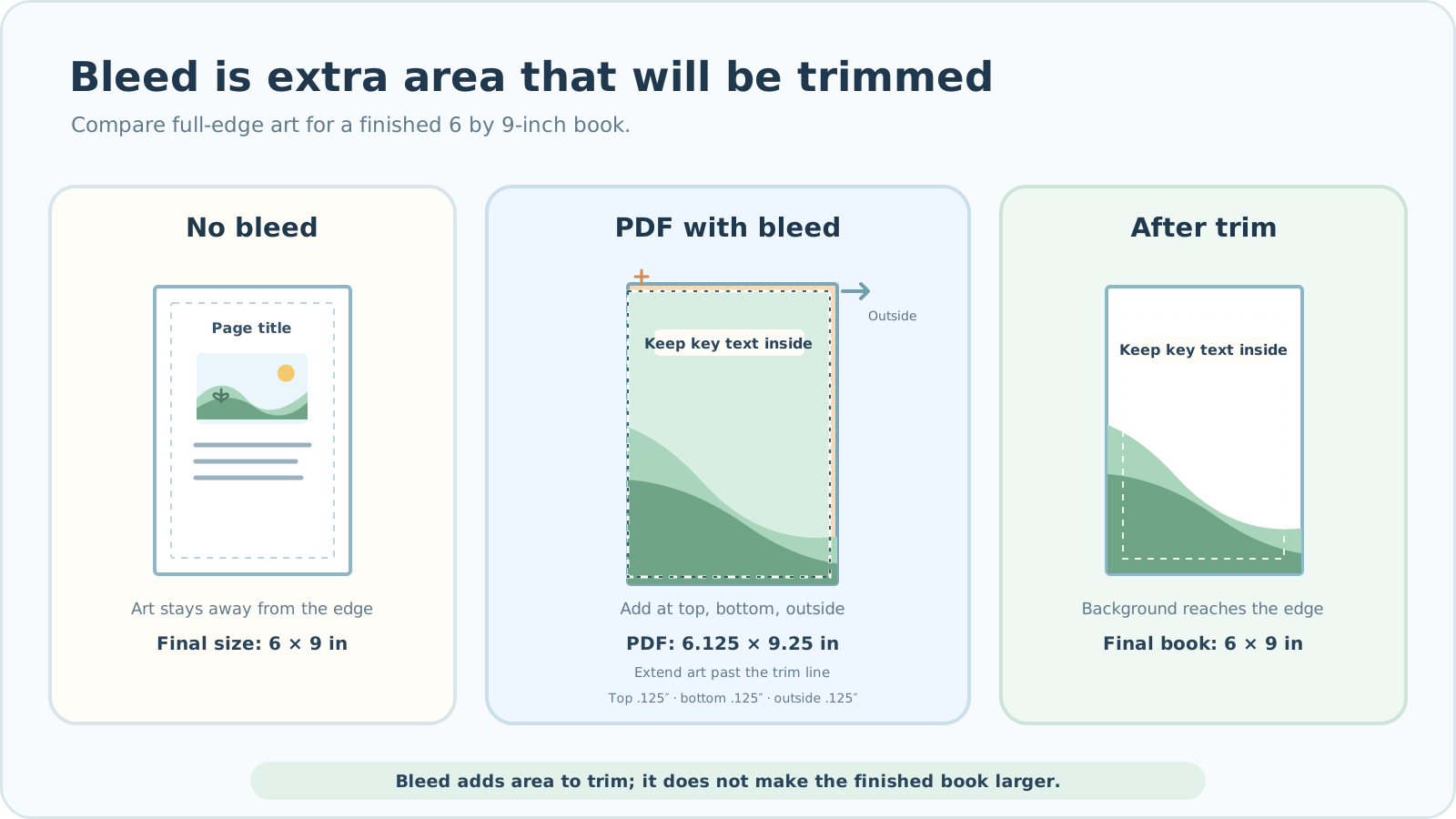

When you need bleed—and when you do not
KDP says to set the entire interior file to bleed dimensions if even one page requires bleed. Cover bleed follows separate rules; do not apply the interior numbers in this guide to a cover.
| Page design | Bleed decision |
|---|---|
| Background color, photo, or illustration reaches the page edge | Bleed is needed. |
| Part of a full-page image touches the top, bottom, or outside edge | Bleed is needed. |
| All text and art stay well within white margins | A no-bleed interior may work. |
Finished trim size is not the same as PDF page size
Trim size is the size of the book after cutting. A bleed PDF adds 0.125 inch (about 3.2 mm) at the top, bottom, and outside edge, but not at the inside binding edge. The PDF is therefore 0.125 inch wider and 0.25 inch taller than the finished page.
| 6 × 9-inch book | One interior PDF page |
|---|---|
| No bleed | 6 × 9 inches |
| With bleed | 6.125 × 9.25 inches |
Art or a background intended to reach the edge must continue beyond the trim line into the bleed area. Enlarging only the PDF page while leaving the art at its original extent is not enough. The 6 × 9-inch size is an example; check current KDP options for your trim size, paper, ink, and allowed page count. Upload an interior with bleed as a PDF file.
Keep bleed separate from safe placement
Bleed is an outside area that may be cut off. Safe placement means keeping text, faces, and other important features farther inside the page. A background can extend through bleed while key content stays away from the trim line.
KDP requires at least 0.25 inch of outside margin without bleed and 0.375 inch with bleed. Important elements are safer with more room than the bare minimum. The inside binding margin, or gutter, changes with page count. For now, focus on keeping key content clear of the trim line; the full margin calculation has its own guide.
Judge even white-background pages individually
White paper alone does not determine whether you need bleed. A small illustration well inside a white page may not need edge-extending art. But if a line or part of an image reaches an edge, extend that element beyond the trim line even on a white page.
If any interior page has an edge-to-edge design, size every PDF page consistently for bleed. That does not mean pushing important content on otherwise plain pages into the outside area.
The inside binding margin follows different rules. See KDP gutter by page count
Prepare the interior in order
- Choose the finished trim size and KDP print options.
- Check whether any image or background must reach an edge.
- If needed, make the whole interior PDF at bleed dimensions. For a 6 × 9-inch book, each PDF page is 6.125 × 9.25 inches.
- Extend edge-to-edge art beyond the top, bottom, and outside trim lines. Keep essential text and art inside.
- Export the PDF, then inspect actual page size and the edges of each page.
- Select the matching bleed option in KDP and inspect cropping and warnings page by page in Print Previewer.
What to check in Book Studio
Book Studio currently has a “Use bleed” option in its book settings. Turning it on adds 0.125 inch to PDF page width and 0.25 inch to height, and places artwork to fill the page. Without it, the PDF page equals the finished trim size. If an image’s proportions differ from the page, filling it may crop part of the art. This setting alone cannot guarantee safe placement or KDP approval. Inspect the downloaded PDF and KDP Print Previewer yourself.
Checklist before exporting the PDF
Check both the exported page size and the actual extent of the art—not merely whether a bleed option is switched on.
To check the final interior and cover together, read Final checks before publishing
- Did I record the finished trim size and KDP print options?
- Does any page have a background or image intended to reach an edge?
- If bleed is needed, are all pages in the interior PDF the same bleed-inclusive size?
- Does edge-to-edge art extend beyond the top, bottom, and outside trim lines?
- Are important text, faces, and lines comfortably inside the minimum outside margin?
- Did I open the first, middle, and last PDF pages at actual size?
- Do the KDP bleed setting and uploaded PDF page dimensions match?
Troubleshooting
KDP says the PDF page size is wrong.
Separate finished trim size from PDF page size. A 6 × 9-inch bleed interior uses 6.125 × 9.25-inch PDF pages. Check that the KDP bleed option matches the file, then prepare a corrected PDF.
Important art or text looks cut off in Print Previewer.
Bleed may be trimmed. Move key content farther inside. Compare source art with the PDF to see whether Book Studio’s fill placement cropped anything. Upload the revised PDF and inspect it again.
I started without bleed but found an edge-to-edge page.
Move that design inside safe margins, or remake the entire interior PDF at bleed size. Do not mix one bleed-sized page with no-bleed pages in one file.
The PDF dimensions are correct, but a thin white line appears at the edge.
You may have enlarged only the page while leaving the background ending at the trim line. Extend the source art through the bleed area, export again, and recheck it in Print Previewer.
Adding bleed at the inside binding edge shifted a page.
KDP interior bleed goes on the top, bottom, and outside—not the inside binding edge. Recheck the left/right page layout and PDF dimensions, and remove the extra inside extension.
What Lalabb can help with—and what you must check
Lalabb can help prepare an interior PDF using your book size and bleed setting. It cannot guarantee Amazon KDP approval, the exact physical trim, press tolerance, or final print quality. Before submission, check KDP’s current specifications and the Print Previewer result.
KDP guidance checked
Official KDP trim-size and bleed guidance checked September 29, 2026.
Common mistakes
- Exporting at finished trim size even though the interior needs bleed.
- Increasing PDF dimensions without extending the art or background past the trim line.
- Putting essential text or faces close to an edge that may be cut.
- Choosing a KDP bleed option that does not match the PDF.
- Submitting without inspecting the file in Print Previewer.
Frequently asked questions
Do I need bleed if no image reaches the page edge?
If all text and art stay comfortably inside white margins, you may prepare a no-bleed interior. First check whether any background or image must print to the edge.
If only one page needs bleed, must I resize the entire interior?
Yes. For KDP, if even one page needs bleed, prepare the entire interior PDF at bleed dimensions. Do not mix page sizes in one file.
Is enlarging the PDF page enough to add bleed?
No. Edge-to-edge images and backgrounds also must extend beyond the trim line into the bleed area.
Does Book Studio move text into a safe position when I enable bleed?
No. The option changes PDF page dimensions and image placement; you must check important text and art in the source and exported PDF.
Can I use these interior bleed dimensions for the cover?
No. The example dimensions here apply to KDP interiors. Check the printer’s current, separate cover requirements rather than copying them to a cover.
Does exporting a PDF from Canva automatically include bleed?
Not necessarily. The app name and the fact that it is a PDF are not enough. Compare finished trim size with actual PDF page size and make sure edge-to-edge art extends beyond the trim line.
Must I extend art on a mostly white page to the edge?
Not if that page has no edge-to-edge art or background. But if another interior page requires bleed, keep PDF page dimensions consistent throughout the file.
Will bleed make the finished book larger?
No. Trim size is measured after cutting. Bleed is extra material that may be removed, so keep important content out of it.
If the bleed warning disappears, can I skip further checks?
No. Inspect important content and edge artwork in Print Previewer even without warnings. If the physical result matters, follow the printer’s proofing process too.
Try it now
First decide whether you need bleed. Use DPI Checker separately to evaluate artwork at print size.
Book-making flow
- Create content
- Prepare files
- Gather pages
- Book Studio
- Cover Studio
- Final check
Choose trim size and decide on bleed during file preparation.
Gather pages, export the interior PDF in Book Studio, and inspect it in KDP Print Previewer.