 LalabbTools
Make a Full Wraparound Book Cover with Cover Studio
Use final interior settings and separate front and back images to prepare one spread cover PDF, then check it against your printer’s template.
Finish book size, interior page count, and paper settings in Book Studio, then continue to Cover Studio. Add separate JPG or PNG images for the front and back, review their placement around the reserved spine, and export one cover-spread PDF. The tool does not create spine text or an ISBN barcode, so compare the result with your printer’s latest template and preview.
Who this guide is for
For creators with front and back art who want a spread cover PDF matching their finished interior.
Understand the cover as one spread
Set book size, final interior page count, and paper in Book Studio, then choose “Make cover” to continue to Cover Studio. Add separate JPG or PNG images for the front and back and inspect their placement. You can export one PDF page containing back cover, spine, and front cover.
Cover Studio currently reserves a spine width but does not automatically create spine title text or separate spine artwork. It also does not make an ISBN barcode. Compare the saved PDF with the printer’s latest cover template and preview.
For an ordinary left-to-right book, a flattened wraparound cover runs back cover, spine, front cover from left to right. The spine is the narrow face seen on a shelf. Outer bleed extends art beyond the trim line to allow cutting. A safe area keeps text and essential art farther inward. Bleed and safe area are different concepts.
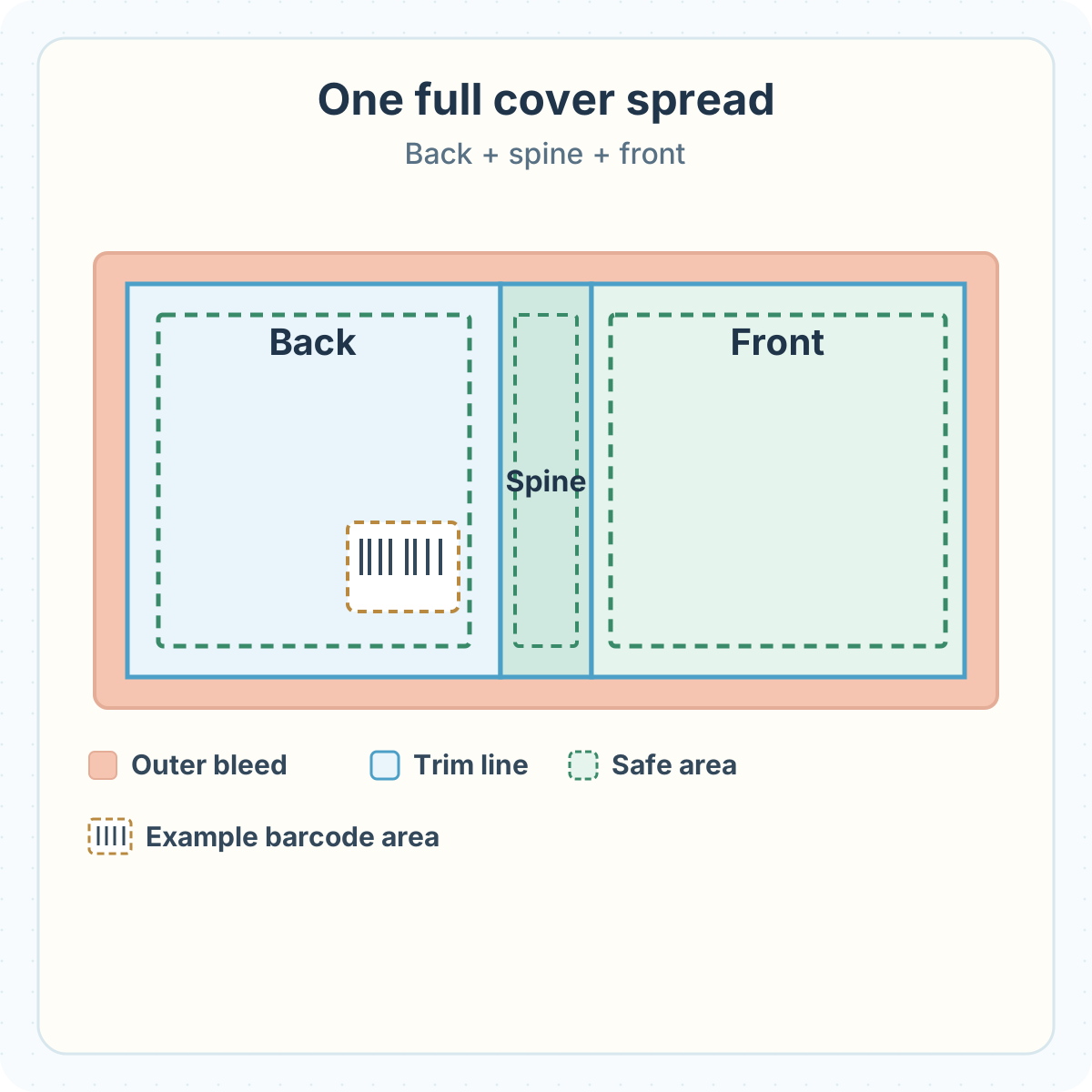

| Part | Prepare | Pay special attention to |
|---|---|---|
| Back cover | Finished JPG or PNG image | Do description text and the intended barcode space overlap? |
| Spine | Width matching final page count and paper | Spine text and separate art are not inserted automatically |
| Front cover | JPG or PNG with title and artwork | Are words too close to trim or fold lines? |
| Outer bleed and safe area | Background extended to edges; key elements kept inward | Do key words or art sit in an area that could be trimmed? |
The marked barcode area is only an example. If a KDP cover is submitted without a barcode, KDP can place one on the back. Other content in that area may cause trouble. Check the printer’s current position and dimensions.
Finalize book settings before designing the cover
Placing front and back images beside one another is not enough to determine full cover dimensions. Spine width depends on final page count and paper. If you add blank interior pages or change paper, check the cover again. Verify the interior PDF and final count in Book Studio and pass the same settings to Cover Studio.
For a KDP paperback, total cover width is outer bleed + back-cover width + spine width + front-cover width + outer bleed. Height includes top and bottom bleed. For example, KDP’s current white-paper paperback formula gives a 0.2252-inch spine for a 6 × 9-inch, 100-page book and an approximately 12.4752 × 9.25-inch spread. This illustrates the calculation; compare your actual submission with KDP’s cover calculator using your own settings.
Interior and cover PDFs are different files. Do not copy interior bleed dimensions directly onto the cover.
Official KDP cover calculator and template
To choose a trim shape, read Square or portrait book?
To prepare the interior PDF, read Coloring book PDF
For printing to the edge of interior pages, read KDP interior bleed
Prepare separate front and back images
Cover Studio accepts one JPG or PNG for the front and one JPG or PNG for the back. Check printed words such as title, author, and back-cover description in your image artwork first; this tool does not write new cover copy onto the PDF. Keep source and revision distinct so you can recover from choosing the wrong version.
Check clarity at the image’s actual cover placement size. Cover Studio displays estimated DPI and may warn of low resolution, but no warning cannot guarantee physical print quality. KDP calls for cover images at a minimum of 300 DPI at the size used.
For a reader QR on the back cover, first place the QR in the back-cover image itself. Cover Studio does not add one automatically. A QR neither replaces the ISBN barcode nor belongs in its reserved space.
For print resolution, see KDP image DPI
To make and print-test a QR, see QR codes for printed books
From Book Studio to Cover Studio
Cover Studio continues the book workflow using settings passed from Book Studio. Check trim size, final page count, and paper before starting the cover.
To prepare the interior and book settings, open Book Studio
- Confirm size, paper, and final page count in Book Studio and make the interior PDF.
- Choose “Make cover · Open Cover Studio.” Opening Cover Studio directly without book settings means you must return to Book Studio first.
- Supply a JPG or PNG for each of front and back.
- Inspect back | spine | front order and cropping in the spread preview. Adjust image position or size if needed.
- Turn on print guides and inspect words and art around trim, bleed, and safe areas. Guide lines are not included in the saved PDF.
- Read checks and estimated-resolution warnings, then save the cover PDF.
- Reopen the PDF: confirm it has one page and correct orientation and placement. Check dimensions, edges, and barcode space against the printer’s official template and KDP Print Previewer.
What Cover Studio does—and does not do
The exported PDF currently has a spine area of the estimated width, but that area is blank. If your design needs a background that continues across the spine, or spine text, do not assume this output is a finished cover. Complete the needed design separately and verify it against the printer’s rules.
For right-to-left books, KDP’s front and back layout can reverse. A hardcover or different binding can also require a different template. Check the specific printer’s template first.
KDP paperback cover instructions
| Currently supported | Not done automatically |
|---|---|
| Receive trim size, final count, and paper from Book Studio | Certify every printer and binding format |
| Position front/back JPG or PNG and export a one-page PDF | Create spine text, separate spine art, or an ISBN barcode |
| Show preview guides and estimated DPI warnings | Guarantee safe text, physical print quality, or publishing approval |
| Download a blank cover-template PDF | Guarantee right-to-left or hardcover compliance |
Checklist before saving the PDF
Before choosing Save, compare the source artwork, book settings, and actual exported PDF.
To check the artwork before cover assembly, see Preparing images for print
- Do trim size and paper match the final interior?
- Does the page count include final blank pages?
- Did I choose the correct front/back JPG or PNG versions?
- Are title and description already included in the images?
- Are important words and art comfortably away from trim and fold lines?
- Does edge-to-edge background continue through bleed?
- Is a blank spine acceptable for this design?
- Does any word, art, or QR overlap reserved barcode space?
- Did I open the PDF and see one spread page?
- Did I check size, placement, and warnings in the printer’s latest template and preview?
Common mistakes
- Using the old cover PDF after changing interior page count and spine width.
- Reversing front and back or inserting an old image version.
- Trusting on-screen guide lines without checking actual text safety.
- Assuming spine background or title appears automatically.
- Putting a QR or back-cover copy in the reserved ISBN barcode area.
Troubleshooting
Cover Studio says book settings are missing.
Prepare the final settings in Book Studio and use “Make cover” to continue. Opening the URL directly does not pass those settings.
The Export Cover PDF button is unavailable.
Check that book settings arrived and both front and back JPG/PNG images are present. If a file was merely renamed to another extension or cannot open, return to the source and prepare a valid image.
A title or drawing is cut off despite looking fine in preview.
Locate the crop in the saved PDF and printer preview. Move words or art farther inward in the source image and export again. On-screen guide lines are not saved into the PDF.
I see a low-resolution cover-image warning.
Compare source pixels with the size the image occupies on the cover. Enlarging art can lower its effective sharpness. Use a sufficiently detailed source and inspect the new PDF.
The spine is blank in the exported PDF.
The current tool reserves its width but does not create separate spine art or text. If your cover needs spine design, do not submit this as complete; finish the design separately using the printer’s template.
KDP warns about cover size or barcode placement.
Reenter the final interior count, paper, and trim size in KDP’s calculator and compare PDF dimensions. Move content out of the barcode area, export again, and recheck in preview. Renaming the file does not correct its contents.
Frequently asked questions
Can I upload separate PDF files for front and back?
Cover Studio currently accepts separate JPG or PNG images and exports one spread PDF. KDP likewise requires a self-made paperback cover as one PDF containing back, spine, and front.
Can I upload one image containing front and back together?
The current tool has separate inputs. Giving the same combined image to both will not produce the intended layout. Prepare the two sides separately or make a finished spread PDF in another editor using the printer’s template.
Can I start in Cover Studio without Book Studio?
The current workflow needs trim, final page count, and paper settings passed by Book Studio. If direct entry shows a missing-settings notice, prepare the book there and choose “Make cover.”
Must I redo the cover after adding interior pages?
Check it again. Final page count can change the spine and overall cover size. Use the new interior count, export a matching cover, and compare with the printer’s calculator.
Can I put a title on the spine?
Cover Studio does not currently write spine text to the PDF. Design it separately if needed, and check KDP’s current eligibility and safety spacing in its official template.
Is a white, blank spine a finished cover?
That depends on the design and printer. The PDF reserves width but does not continue front/back backgrounds across the spine. If continuity or spine art is required, do additional design work and review the result.
Does Lalabb add an ISBN barcode automatically?
No. Cover Studio’s barcode marker is an example of reserved space; the saved PDF does not contain a new barcode. KDP may place one on a cover submitted without it, so keep that area clear.
Can I have both a back-cover QR and an ISBN barcode?
Yes, but the QR must not occupy the reserved ISBN barcode area. Create it separately, add it to the back-cover image, then review both positions in the final PDF and printer preview.
Can I supply WebP or SVG cover artwork?
Not directly. Cover Studio currently accepts JPG and PNG. Lalabb’s Image Resizer currently outputs WebP, which cannot be inserted into Cover Studio as-is. Prepare the final sides in an accepted format.
Does no DPI warning mean KDP approves print quality?
No. Estimated DPI only uses image dimensions and placement. It does not validate safe text, color, physical output, or KDP approval. Check the final PDF and Print Previewer, plus the printer’s proofing process when needed.
Are preview trim and safe-area lines included in the PDF?
No. They are on-screen guides, not part of the exported PDF. Reopen the file and compare artwork placement with the printer’s template.
Can I use the same PDF unchanged for hardcover or a right-to-left book?
Do not assume so. The tool does not certify every binding format and uses the usual back–spine–front spread. KDP’s calculator takes binding and reading direction into account; in right-to-left books the front/back layout can differ. Compare the correct official template first.
Continue in Lalabb

If settings are missing, confirm the final interior in Book Studio first. Cover Studio assists editing and review; it does not guarantee barcode issuance, spine design, printer compliance, print results, or approval.
Book-making flow
- Create content
- Prepare files
- Gather pages
- Book Studio
- Cover Studio
- Final check
In Cover Studio, prepare one spread using front art, a reserved spine, and back art matching the book settings.
After exporting, compare cover and final interior settings with the publisher’s latest guidance and preview.