 LalabbTools
How to Make a Coloring Book Interior PDF
Arrange JPG and PNG artwork in Book Studio, choose whether to add blank backs, and inspect the finished interior PDF.
Prepare your JPG or PNG drawings, put them in the intended order, and add a blank page behind each drawing only if you want that layout. In Book Studio, create the interior PDF—the pages inside the book, not its cover. Open the downloaded PDF and check the drawing order and blank-page placement.
Who this guide is for
Once your coloring art is in files, the next job is to put pages in reading order and make one PDF. Blank backs are optional. Test a few representative drawings before assembling the whole book.
Prepare separate image files and their order
Make sure each drawing is a separate JPG or PNG. If several drawings are on one image sheet, separate them first.
Names such as 01-rabbit and 02-flower can help while organizing. Filenames are useful cues, but confirm and set the final book order in Book Studio.
To separate drawings from one sheet, use Image Sheet Splitter
Compare two layouts using six drawings
Imagine you have one drawing each of a rabbit, flower, ocean, space, dinosaur, and forest.
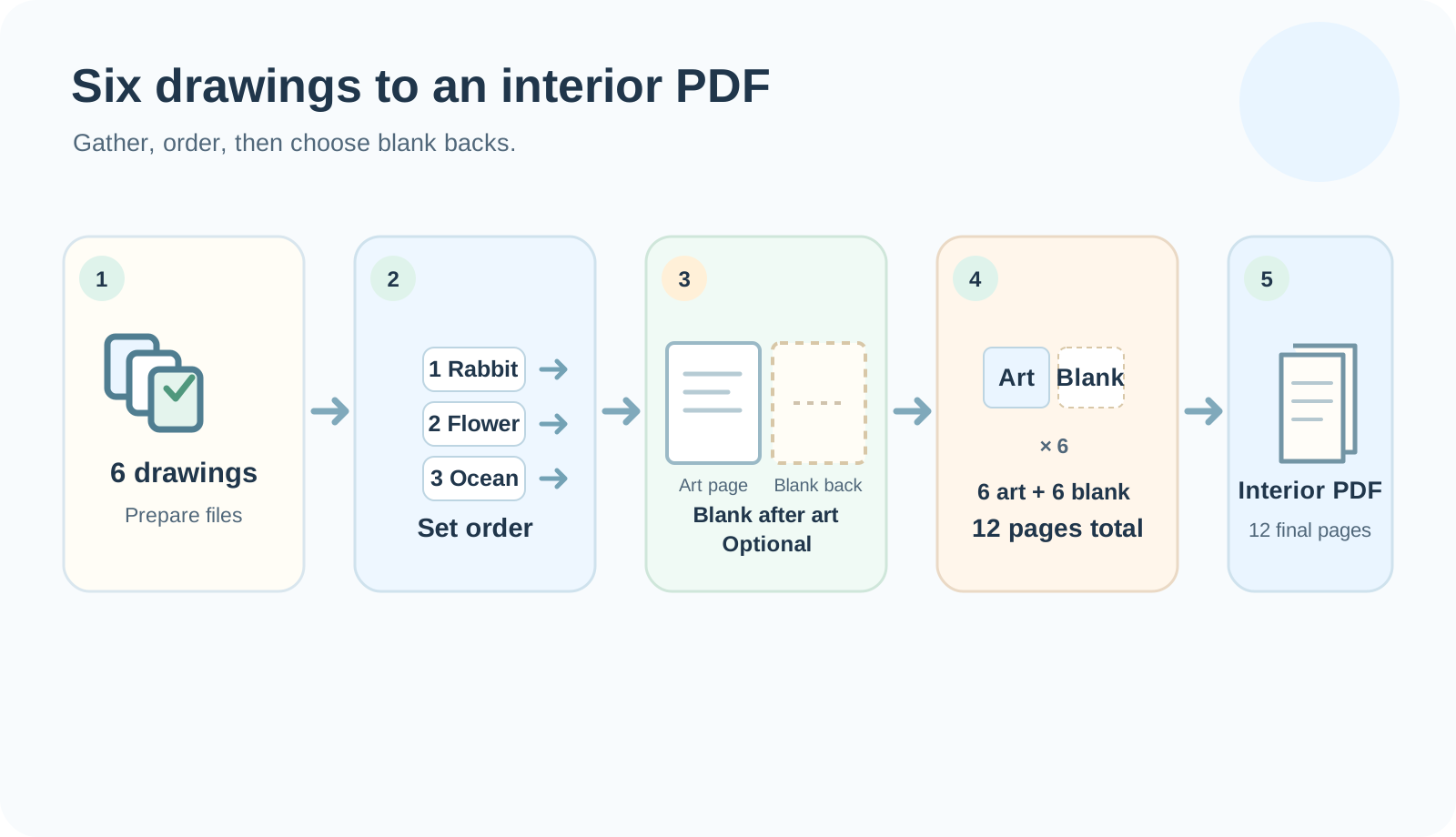

| Choice | Pages in this example | What to consider |
|---|---|---|
| Drawings one after another | 6 drawing pages | Art continues without blank pages |
| A blank page after every drawing | 6 drawing pages + 6 blank pages = 12 pages | The back of each drawing is blank; total page count increases |
These numbers are an example using six drawings. Front matter or other pages will change the final count. Separately check the publisher’s current page-count and file requirements.
Blank backs also change the final page count. You will need that count again when preparing a cover with a spine, so record it after finishing the interior PDF.
When should you add blank backs?
You may choose a blank back if you want the reverse of each drawing empty or do not want the next scene directly behind it. If you want drawings to follow each other, leave the option off.
Adding a blank page does not eliminate show-through or marker bleed. The result depends on the paper and coloring tool. If that matters, test a representative page with the materials you expect to use.
Build it in Book Studio
- Choose a book size in Book Studio and add your prepared JPG or PNG drawings.
- Arrange the drawing list. Check the first and last drawings too.
- Choose whether to put blank pages behind drawings and note the displayed final page count.
- Create and download the interior PDF. Open it and inspect every page for order, missing art, and the position of blank pages.
Checklist before creating the PDF
Do not rely on filenames alone. Check both the Book Studio page list and the downloaded PDF.
If a small book may make coloring areas cramped, read Preparing a mini coloring book
- Is each drawing a separate JPG or PNG?
- Did I check a representative drawing for sharpness at print size?
- Did I inspect the first and last entries in Book Studio’s page list?
- Did I decide about blank backs and check the increased page count?
- Does my chosen printer support this book size and final page count?
- Did I open the saved interior PDF from beginning to end?
- Am I preparing the front and back cover separately from the interior?
Common mistakes
- Trusting filenames as proof of page order: inspect the actual Book Studio list and exported PDF.
- Turning on blank backs without checking the increased page count: review the final total and intended arrangement.
- Expecting a blank back to prevent marker bleed: it is a page-layout choice. Test the paper and coloring tools separately.
Troubleshooting
I reopened the project, but images are missing or need relinking.
Check that the original image files are still on your device. Relink them in Book Studio and inspect the page list. Do not export the final PDF until the file connections are correct.
Blank pages appeared in the wrong places.
Check drawing order and the “blank page after drawing” option. Inspect the last-page setting too. Test with a few representative drawings until the sequence is right.
The PDF has more white space around drawings than I expected.
A mismatch between image and page aspect ratios can create margins. Compare the selected book size with the source art, prepare the images for that page shape, and generate a new PDF.
One drawing is missing from the exported PDF.
Find the missing source in Book Studio’s page list and make sure it is linked. Relink the saved original if needed, confirm order, then download a new PDF.
My final page count does not fit the printer’s requirements.
Count the actual pages in the PDF, including blank backs and front matter. Check the printer’s current limits for your size and print options, adjust the layout, and export again.
Frequently asked questions
Can one book contain both JPG and PNG drawings?
Yes. Book Studio accepts both. Make sure every file opens and appears on the intended page.
How can I change drawing order after creating the PDF?
Change the order in your Book Studio project and export a new PDF. Keep the original images and project files along with the PDF for future edits.
Can I use one image sheet containing several drawings as separate pages?
If each drawing should be its own page, split the sheet into separate images first. Then check their order in Book Studio.
Why do six drawings with a blank page after each become 12 pages?
Six drawing pages plus six blank pages total 12. Front matter or other pages will change the finished count.
Will a blank back stop markers showing through to the next drawing?
A blank page changes the layout; it does not prevent ink bleed or paper show-through. Test a representative page using the planned paper and coloring tools.
Are the front and back covers included in this PDF?
No. Book Studio’s coloring-book interior PDF and the front/back cover are separate files. Do not mix covers into the interior. Check the finished book settings and page count before preparing a cover in Cover Studio, and check your printer’s current cover requirements.
Can I skip blank pages behind the drawings?
Yes. Blank backs are optional. If you want drawings in sequence, leave them out. Test paper and coloring materials separately if show-through is a concern.
Can I use the same drawing file on two pages?
If you repeat a drawing, inspect both placements in the page list. If the repeat was accidental, remove the extra page, export a new PDF, and inspect it from beginning to end.
Should I recheck cover spine width after saving the interior PDF?
Yes. Adding blanks or other pages can change the final interior page count. Before moving to Cover Studio, confirm the PDF page count and book settings and compare with the printer’s cover template.
Try it now
Book-making flow
- Create content
- Prepare files
- Gather pages · step 3
- Book Studio · step 4
- Cover Studio
- Final check
Steps 3–4: gather the pages and arrange them into an interior PDF in Book Studio.
After checking the interior PDF and final page count, prepare the cover in Cover Studio.