 LalabbTools
How to Make a QR Code for a Printed Book
Choose a stable public destination, place the QR in a page or back-cover image, and test it at actual print size.
Choose a public URL readers can open without signing in, generate a static QR, and place its image in the page or back-cover artwork. Leave empty space around it and test a print at its actual book size with more than one phone. A printed static QR cannot change the address encoded inside it.
Who this guide is for
For book creators who want to link readers to public extras or an information page.
What should the QR open from the book?
A QR can lead to bonus materials, audio or video instructions, or a contact page after someone reads the book. Start with an address anyone can open on a phone and that you expect to maintain.
QR Designer encodes the address you enter into a static QR. You cannot change that encoded address after printing, so verify the final address before using it.
| Purpose in the book | Destination |
|---|---|
| Bonus material or a downloadable file | A public page readers can open without an account |
| Audio or video | A public page with clear playback instructions |
| Contact or feedback | A working public contact page |
Putting a QR on an interior page
Leave empty space around all sides instead of crowding the QR with art or text. Dark modules against a light background are easier to distinguish.
Prepare the QR and its short explanation as part of a finished PNG or JPG page image, then place that page in the interior.
To collect your finished pages into an interior, open Book Studio
Putting a QR on the back cover
Prepare the back-cover image with the QR already placed. Cover Studio does not add the QR automatically; check that it is neither cropped nor unreadable in the finished cover art.
To check the finished cover against book settings, open Cover Studio
From destination to a real scan
QR Designer accepts a URL, short text, email address, or Wi-Fi details and exports PNG and SVG. Its `4 · recommended` quiet-zone setting is a starting point.
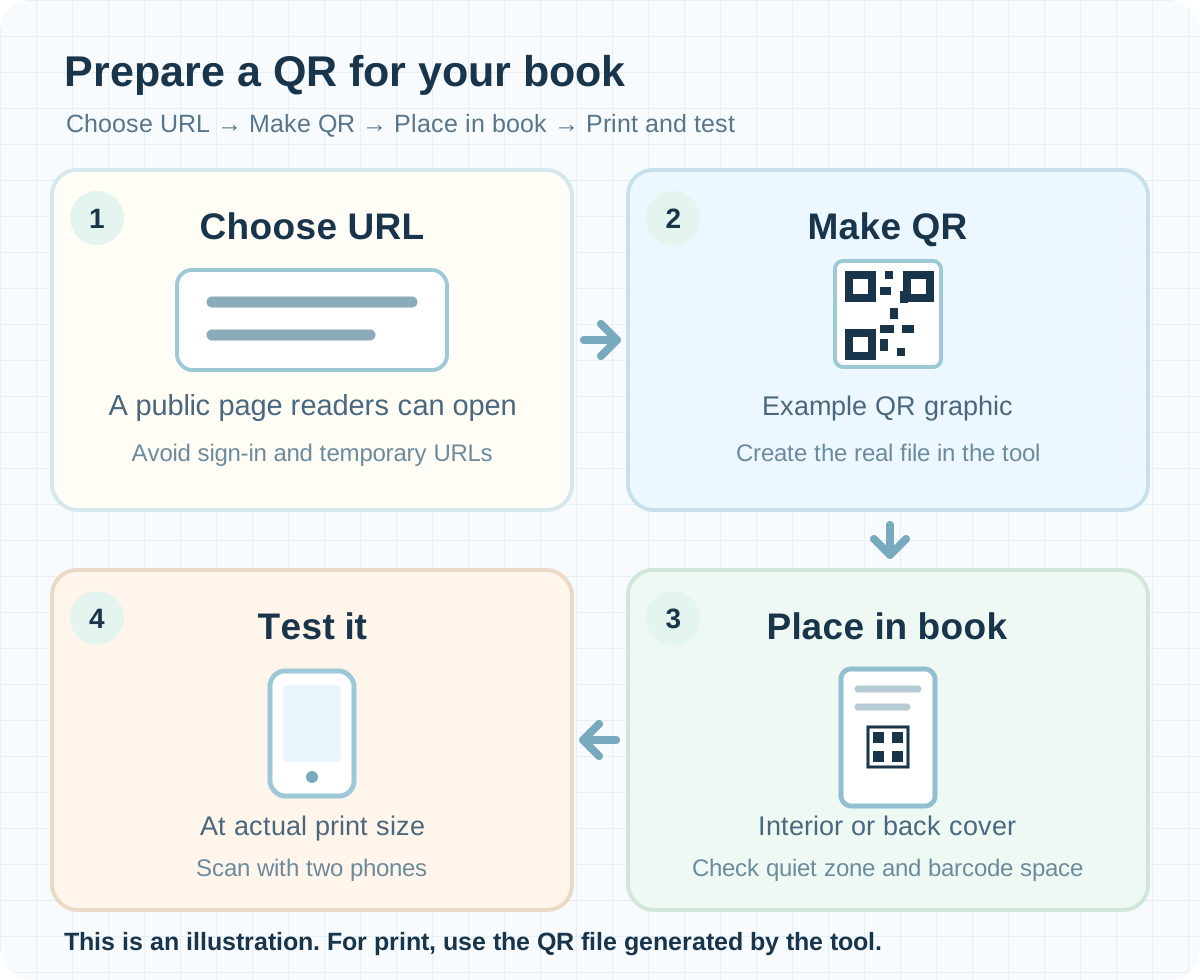

Print and test it at its actual size
A QR that looks clear on screen is not enough. Print it at the location and size planned for the book, then scan it with two different phones.
For example, if you plan a 30 mm QR in the book, print a 30 mm test. This is an example for checking, not a universal minimum for all books and printers.
- Scan the QR with a phone camera.
- Verify it opens the intended final page.
- Repeat with another phone.
- Is there empty space on every side of the QR in the final page or cover?
- Are the small modules distinct at actual print size?
- Does the first phone scan it?
- Does it open the intended final address?
- Does a different phone get the same result?
- Can a reader without an account view the destination?
- On a back cover, does it avoid the reserved ISBN barcode space?
Check once more before production
On a back cover, keep the QR away from the barcode area required by the publisher or printer. QR Designer makes the code; it does not build the linked page or guarantee print results or publishing approval.
Limitations
- QR Designer accepts up to 2,000 bytes of input.
- The PNG export options of 512, 768, and 1024 pixels set image dimensions. You separately choose its physical size in page or cover artwork.
Common mistakes
- Printing a temporary destination or one that requires a login.
- Cropping away the quiet zone or placing other art too close.
- Checking only on a screen instead of printing and scanning at actual size.
Troubleshooting
The camera cannot read my printed QR.
Check whether small modules have blurred together or the empty quiet zone was cropped. Improve contrast, then print the final file at its intended size and scan again.
The QR scans but opens the wrong page.
Compare the encoded URL and the QR image actually placed in the page or cover; an older version may be there. Renaming a file cannot change the code. Generate a new QR with the correct address and rebuild the artwork.
It opens on my phone but not for someone else.
Check whether only signed-in users can see the link. Open it while signed out or on another device. If you change the address, generate a new QR too.
The QR became blurry or cropped in the PDF.
Compare the source art and PDF for size, clarity, and space around the QR. Fix the placement, export a new PDF, and test another actual-size print.
The QR overlaps the KDP back-cover barcode.
Reserve the ISBN barcode area, move the QR, and rebuild the cover. Inspect both in KDP Previewer. A QR does not replace the ISBN barcode.
Frequently asked questions
Does a printed book have to include a QR?
No. Use one when there is a clear reason to lead readers beyond the book. Add a short label saying what it opens so they can decide whether to scan.
Can a QR replace the ISBN barcode?
No. They serve different purposes. An extra QR may be placed on a KDP back cover, but it must not invade the reserved ISBN barcode space. Check both in the final cover.
Can I change the QR address after the book is printed?
Not inside a printed static QR. If you control the encoded URL, you may manage where that URL points separately; that is not a QR Designer feature. Verify the encoded address before printing.
Can I encode a long URL?
Within the input limit, yes, but more encoded content can make the QR pattern denser. For a small printed code, consider a short, stable URL you can maintain. Print and test any choice at actual size.
Can I link to a file that requires sign-in?
Avoid that unless all readers have the required account. It may open for you but block others. Test signed out and consider a public information page.
How many millimeters should I print the QR?
There is no single minimum that works for every book, printer, and phone. Choose the intended size, print at that size, and scan it. The 30 mm example here is a test case, not a guarantee.
Why does a QR need white space around it?
The quiet zone helps a camera identify the code boundary. A standard QR needs four modules of clear space on every side. Preserve it when placing or cropping the file.
Should I use PNG or SVG for my book?
Choose for your editing workflow. QR Designer exports both, but finished page or cover images entered into Book Studio or Cover Studio must be JPG or PNG. If you use SVG in another editor, export the final art in an accepted format and scan-test it again.
Does a 1024-pixel export set the print size or DPI automatically?
No. That is the QR image width in pixels. You choose its physical size separately in book artwork, then test the printed result.
Can I put several QRs in one book?
Yes, if they have distinct purposes. Label each destination and test each printed code. Avoid crowding similar-looking codes together.
Can I skip a proof if the QR scans on screen?
That is not recommended. The code can be smaller or softer in print. Make an actual-size test and scan it with multiple phones; a printer’s physical proof adds another check.
Will Lalabb place the QR into book pages or covers for me?
No. QR Designer makes the QR image. You place it in the page or cover design separately. Book Studio can assemble finished JPG or PNG pages, and Cover Studio can check finished back-cover art against book settings.
Try it now
Book-making flow
- Create content
- Prepare files
- Gather pages
- Book Studio
- Cover Studio
- Final check
During file preparation, choose the destination, make the QR, and prepare the page or cover image containing it.
Check interior pages in Book Studio and a back cover in Cover Studio. Finally test a print at actual size with phone cameras.